
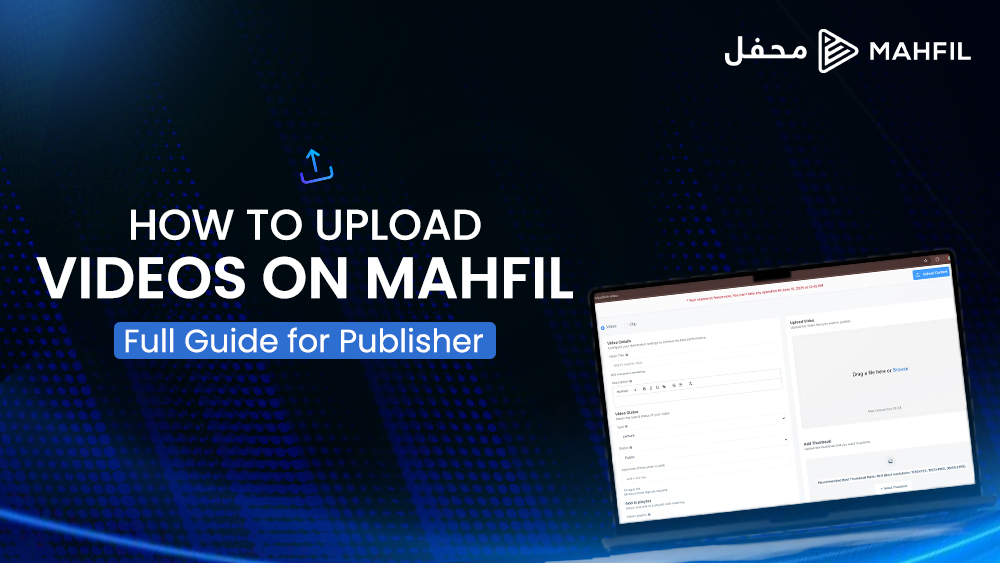
Welcome to Mahfil — your space to share, connect, and inspire through purposeful content.
How to Upload Videos on Mahfil: Full Guide for Publisher
In this guide, we’ll walk you through each step of how to upload your videos properly, so your content is ready to reach and engage your audience.
Let’s get started!
Step 1: Click “Upload Content”
After logging in, go to the top-right corner of your screen and click the “Upload Content” button.
Step 2: Choose Your Video File
You can either:
- Drag and drop your video into the upload box
- Or click “Browse” to select a file from your device
Mahfil supports files up to 50 GB, so feel free to upload high-quality content.
Step 3: Add a Video Title
Write a title that reflects your content clearly.
- Keep it short and meaningful (max 500 characters)
- Ideal length: 6 to 10 words (around 60 characters)
Step 4: Upload a Thumbnail
Your thumbnail is the first thing viewers see, so make it count
- Use an eye-catching image
- Recommended aspect ratio: 16:9
- Size: 640×360 or 1920×1080 pixels
Step 5: Write a Description
A strong description helps your viewers understand the video before watching.
- Aim for 120 to 200 words
- Include relevant details, context, or even a call to action
Step 6: Choose the Right Category
Pick a category that fits your video content.
This helps the algorithm recommend your video to the right audience.
Step 7: Set Video Visibility
Choose between:
- Public – Anyone can see it (Recommended)
- Private – Only you can see it
Step 8: Add Tags or Keywords
Tags help people discover your video through search.
- Add relevant keywords (e.g. “Islamic lecture,” “storytelling,” “halal entertainment”)
- The better your tags, the better your visibility
Step 9: Add to a Playlist (Optional)
If you have existing playlists, you can assign the video now — or skip and do it later.
Playlists help organize your content for returning viewers.
Step 10: Review & Publish
Double-check all the details:
- Title
- Thumbnail
- Description
- Tags
- Visibility
When everything looks perfect, click Publish. Then confirm again by selecting “Publish It”.
Step 11: Uploading & Approval
Your video will now upload and go through processing.
- Status may show as Pending
- Once reviewed and approved, it will be live for your audience to watch
That’s It — You’re Live on Mahfil
Congratulations!
Your video is now part of a growing community of publisher making a difference through halal content.
Keep uploading. Keep inspiring.
And thank you for being a part of Mahfil. Need help? Visit our Support Center or reach out via in-app chat.